

Key Takeaways
- AI is the New Referrer: Tools like ChatGPT, Perplexity, and Gemini are driving high-intent traffic that often bypasses traditional search tracking.
- GSC has Limitations: Google Search Console cannot track third-party tools like ChatGPT or provide a full view of “AI vs. Organic” performance.
- GA4 is Essential: traffic from ChatGPT, Perplexity and other AI platforms is grouped into the new AI Assistant channel, introduced by Google in May 2026.
- Monitor Beyond the Click: check your target prompts manually in AI responses or automate tracking with the help of specialized tools like SUSO’s AI Search Visibility Checker, to understand your visibility, share of voice, sentiment and how these metrics compare to your competition.
AI tools like ChatGPT, Perplexity, and Google’s Gemini have quickly become a new kind of traffic source.
People ask questions, get instant summaries, and sometimes, if your content gets mentioned, they’ll click through to your site. But here’s the catch: it’s not always easy to tell where those visits are coming from.
Most analytics platforms weren’t built with this kind of behavior in mind, and AI tools don’t exactly make referral tracking easy.
That said, there are ways to spot this traffic in GA4. In this guide, I’ll walk you through how to find it, why it’s worth tracking, and how to turn those insights into smarter SEO decisions.
Why Should You Care About AI Traffic?
Monitoring AI traffic allows website owners to:
- Understand Your Visibility in AI Platforms. If ChatGPT or Perplexity cites your content, that’s a sign your site is seen as authoritative. Measuring these visits is your first step to understanding how often AI platforms recommend you. Of course, this only counts when a user actually clicks through to your site, but it’s a solid way to start spotting whether your content is showing up in AI responses at all.
- See How AI Visitors Behave. Users coming from AI platforms are in a different mindset than those from Google Search. Knowing which pages they land on, and what they do next, can inform your content and UX decisions.
- Adjust Your Strategy Before the Curve. As AI platforms eat into search traffic, early tracking gives you a competitive edge. You’ll spot trends before your competitors even realize the shift is happening.
The Problem: GSC Can’t Show You the Whole Picture
While Google includes AI-driven clicks in your performance reports in Search Console, it doesn’t make it easy to find them. Clicks from AI Overviews and Google’s AI Mode are currently counted as standard “Web” search results. There is no dedicated filter to see AI-specific performance. Yes, Google did introduce Search Generative AI performance reports in Search Console, but they are not widely available yet.
On top of that, GSC is a Google-only tool. It will never show you traffic and impressions from ChatGPT, Perplexity, or Claude. These platforms don’t send traffic via traditional search results. Instead, they bypass many of the mechanisms that traditional web analytics rely on to attribute traffic and to understand user journeys.
This is how ChatGPT and Perplexity arrive at their results:
- Open links in new tabs (shown as AI Assistant or Direct in GA4, or previously, before the introduction of the AI Assistant channel, as Referral);
- Use APIs or embedded browsers that strip tracking data;
- Don’t surface user queries, so there’s no search term to report.
So while Google will attribute traffic from an AI overview or AI Mode to Organic Search in your GA4 reports, traffic from third-party AI platforms like ChatGPT will show up as AI Assistant or Direct.
How to Measure AI Traffic in GA4 (Step-by-Step)
Let’s walk through how to spot AI-originated traffic using Google Analytics 4. You’ll need GA4 set up on your site. If you don’t have it yet, you can ask us to do it for you.
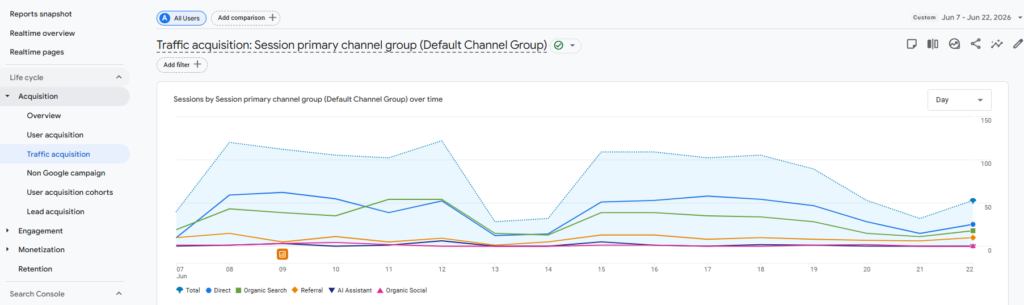
1. Go to Reports > Acquisition > Traffic Acquisition
This is your starting point for seeing how users arrive at your site. If you have traffic coming from LLMs, it will be grouped into the AI Assistant channel, introduced by Google in May 2026.
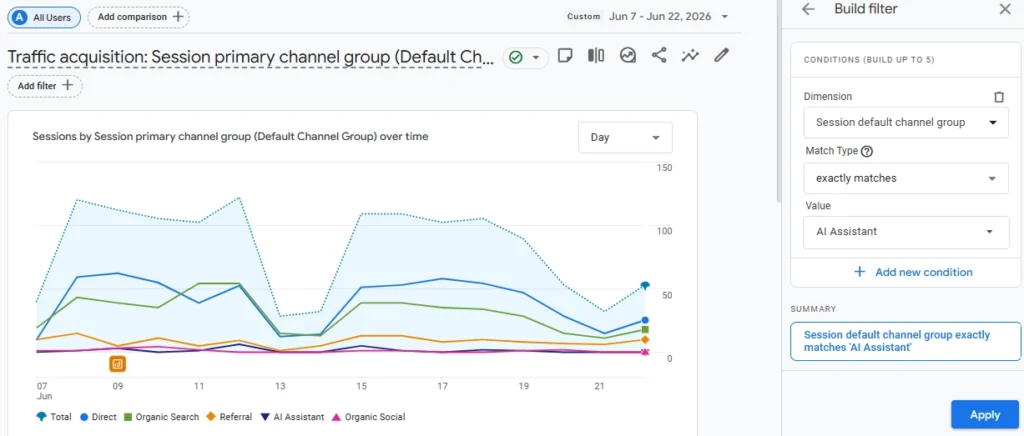
2. Filter by Session Default Channel Group: AI Assistant
Click “Add filter”, choose the dimension “Session default traffic group” > exactly matches > AI Assistant. This filters out traffic from other channels.
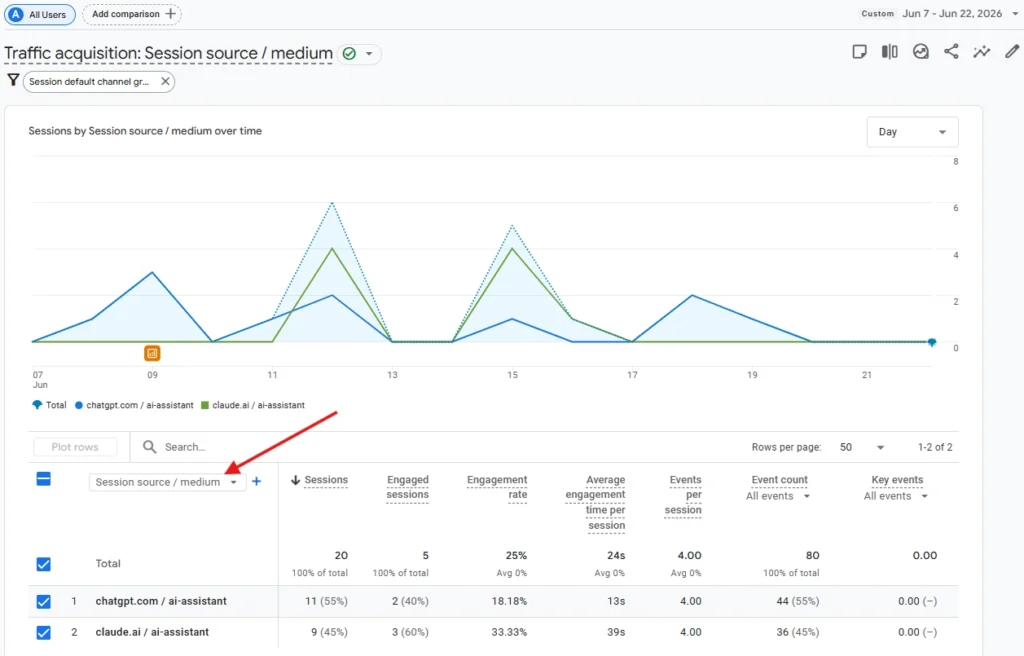
3. Update the Primary Dimension of the Filtered Report to Session Source/Medium
This shows you exactly which websites are sending traffic to your site. Look for domains like:
chatgpt.com / ai-assistantgemini.google.com / ai-assistantchat.openai.com / ai-assistantperplexity.ai / ai-assistantclaude.ai / ai-assistant
4. Check Which Pages LLMs Link to on Your Website
One way you can see it is by adding a secondary dimension to your filtered Traffic Acquisition report. This will allow you to see traffic to each of the sources broken down by landing pages:
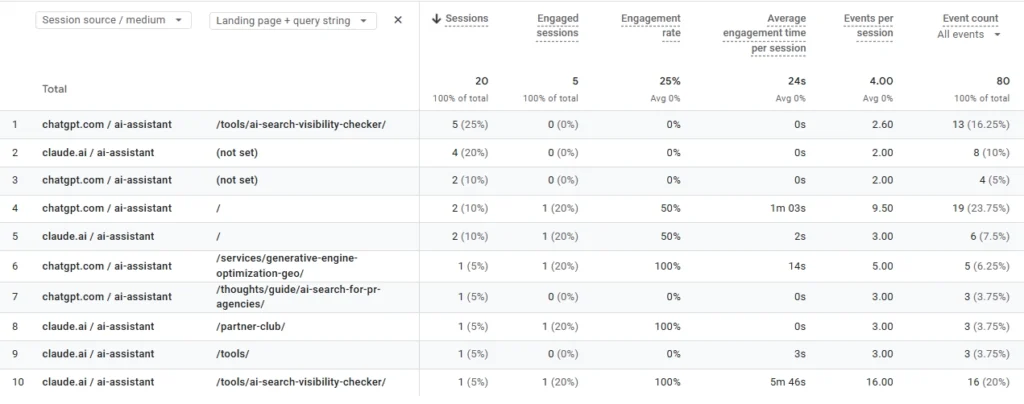
You can also check which pages AI sends traffic to in the Engagement > Landing pages report by using the same AI Assistant channel filter:
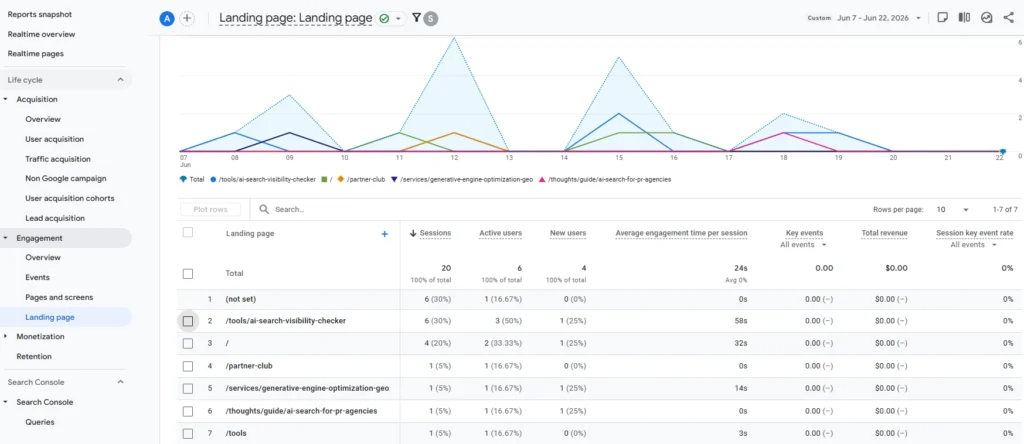
These are the pages that LLMs cite and link to, so it’s worth keeping them regularly updated to maintain this traffic. You can also look at the conversion elements of these pages to make sure that you are getting the most out of them.
5. Check Which Pages Are Being Visited
When users land on your website, after the landing page, they might go further and visit other pages of your website. To find out which pages these are, head to Engagement > Pages and screens. Add the same filter as above. Now you can see exactly which content AI-originated users find attractive, beyond the landing pages.
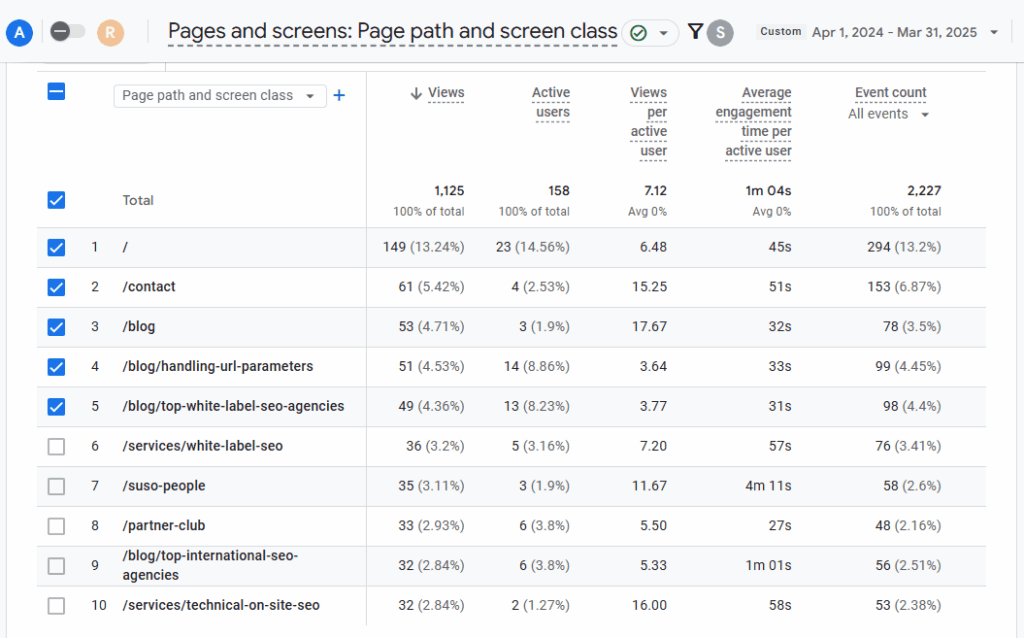
6. Monitor Engagement
Compare session duration, bounce rate, or conversion events for AI traffic vs other channels. Are they sticking around? Are they converting? This is your opportunity to tailor content for this growing audience.
7. Check if AI Touchpoints Participate in Conversion Paths
You can see AI referral traffic conversions right in the Traffic Acquisition report (#3 in our guide). But if AI traffic doesn’t bring you many conversions and revenue yet, it doesn’t necessarily mean that this traffic is not converting.
The thing is, it might take multiple touchpoints for the user to make a decision to buy from you or start talking to you, and a user who originally found you through AI might eventually convert as an organic, direct, or another type of lead. This is especially true for the B2B industry, when it might take as many as 10 touchpoints, or even more, for the conversion to happen.
So how can you check whether LLMs helped make those conversions happen? To do this, go to Advertising > Attribution > Attribution Paths, and change the primary dimension to Source. Look for path lengths of 2 and more touchpoints. Here in this screenshot, you can see that Google Analytics credited Google Organic for 2 conversions, when in fact these users first landed on the website from ChatGPT:
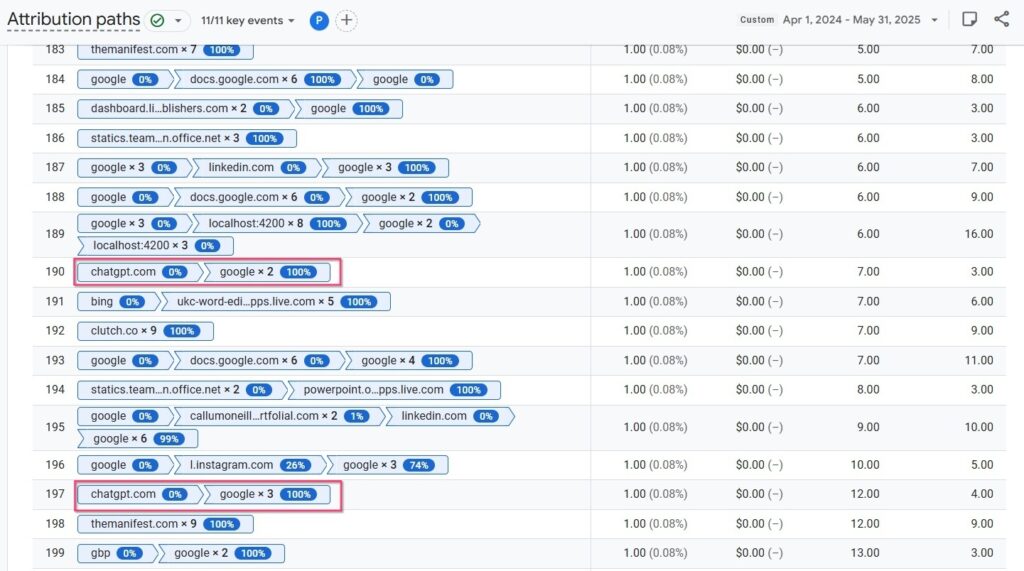
This report can be especially useful for providing an early proof of ROI on AI search optimization investment, when AI referral conversions have not yet picked up despite the traffic flowing in.
What GA4 Might Miss
Even with GA4, you won’t capture everything. Here’s why:
- No Referrer = Direct Traffic. Many AI platforms strip referrer data. Those visits show up as “Direct,” making attribution difficult.
- No Context. GA4 can tell you where users came from, but not why. You won’t see the question that triggered the AI to cite your site.
- Low Volume for Now. AI referrals may be small today, but that’s changing fast. Track now to get ahead.
Beyond GA4: Other Ways to Monitor AI Visibility
While GA4 is your best bet for tracking users once they land on your site, it doesn’t tell you how often you’re appearing in AI responses before the click. To get the full picture, you need to look at “Top of Funnel” AI visibility.
Monitor Copilot via Bing Webmaster Tools
If you want to see how you’re performing within Microsoft’s AI responses, check the AI Performance Dashboard in Bing Webmaster Tools.
Unlike Google’s more restrictive reporting, Microsoft has leaned into transparency. Their AI performance reports allow you to see exactly where your brand appears across the “AI Web.” This dashboard provides data on impressions and cite-rates within Copilot, giving you a rare glimpse into the queries that trigger your content in AI-native search. Moreover, in June 2026 Bing announced it is expanding its AI Performance Report to include Intents, Topics, Citation Share, and Compare.
Benchmark Your Rankings with SUSO
Tracking traffic you already get is only half the battle. To win, you need to know if you’re even being considered. Our free AI Search Visibility Checker analyzes over 100 signals to see how ChatGPT, Gemini, and Perplexity prioritize your brand.
While GA4 shows clicks, this tool reveals your AI Visibility Score across six key areas, including:
- Answer Frequency: How often you’re cited compared to competitors.
- Training Data Inclusion: Whether you’re part of the LLMs’ core knowledge.
- Reputation & Authority: How favorably AI portrays your brand.
- AI Bot Accessibility: Whether LLMs can access and extract from your website.
If you aren’t mentioned in the prompt, you’re invisible at the decision-making moment. Use this report to uncover your AI visibility gaps and understand your GEO (Generative Engine Optimization) priorities.
Final Thoughts
AI tools are already changing how people discover content online, and that shift is only going to accelerate. Tracking this kind of traffic isn’t perfect (yet), but GA4 gives us a solid starting point. Keep an eye on those AI referrers, see how users engage, and start adjusting your content strategy where it makes sense.
The teams that spot these patterns early? They’re the ones who stay ahead.
FAQs
-
Can I attribute traffic from ChatGPT or Perplexity?
Yes, you can attribute this traffic in GA4 by monitoring the Traffic Acquisition report. While AI tools strip specific query data, they typically leave a referral source footprint such as chat.openai.com or perplexity.ai. By filtering your report down to the AI Assistant channel, you can isolate these visits from standard referrals to see exactly how AI discovery impacts your site’s sessions and conversions.
-
How to check Perplexity referral traffic?
The most effective way to gauge traffic from Perplexity is to navigate to the Traffic Acquisition report in GA4 and apply a session source filter for “perplexity.ai” in your report.
In addition to it, you can monitor which specific pages receive this traffic either by adding Landing Page as a secondary dimension in your Traffic Acquisition report, or by heading to the Landing Pages report.
-
How to track Gemini traffic specifically?
To track Gemini traffic, you should look for gemini.google.com or the older bard.google.com within your referral reports. Because Google treats Gemini as a separate entity from its search engine, these visits appear as AI Assistant referrals rather than Organic Search. Setting up a specific session source filter for “gemini” in your Traffic Acquisition report is the best way to monitor this growing source.
-
How to check ChatGPT traffic of your competitors?
You cannot access a competitor’s GA4 data, but you can use SUSO’s AI Visibility Checker or similar marketing intelligence tools to estimate your competitors’ reach in ChatGPT and other AI platforms. By analyzing your citation share and answer frequency, you can see how often an LLM cites a competitor’s brand versus your own. This provides a proxy for the volume of traffic they are likely receiving from AI platforms.
-
What’s the best way to track AI visibility?
The best way to track AI visibility is to combine referral traffic data with citation monitoring. Use GA4 to track the clicks you receive and SUSO’s AI Visibility Checker to benchmark your brand’s authority and presence within the training data and responses of major LLMs.


