Creating content is not what it used to be. AI has been invited to the party, which means that we have been given exciting opportunities to expand our toolkits.
Let me show you around some of my favourite AI tools, discoveries and first-hand strategies for making your content creation easier.
Best AI Image Generators in the Game
Midjourney
In my experience, one of the most reliable tools for AI image generation is Midjourney. It’s fairly intuitive to use while maintaining high-quality outputs and impressive capabilities.
Initially, Midjouney was primarily accessed through a Discord server (that’s how I use it in my work); however, in 2024, the company launched a web interface alongside the release of Midjourney version 6.1.
What are some of my favourite aspects of this tool?
Hyperrealistic Images
Midjourney is one of the best AI image-generative tools for hyperrealistic results. It handles humans and human anatomy well, producing fewer errors than any other text-to-image AI tools I know.
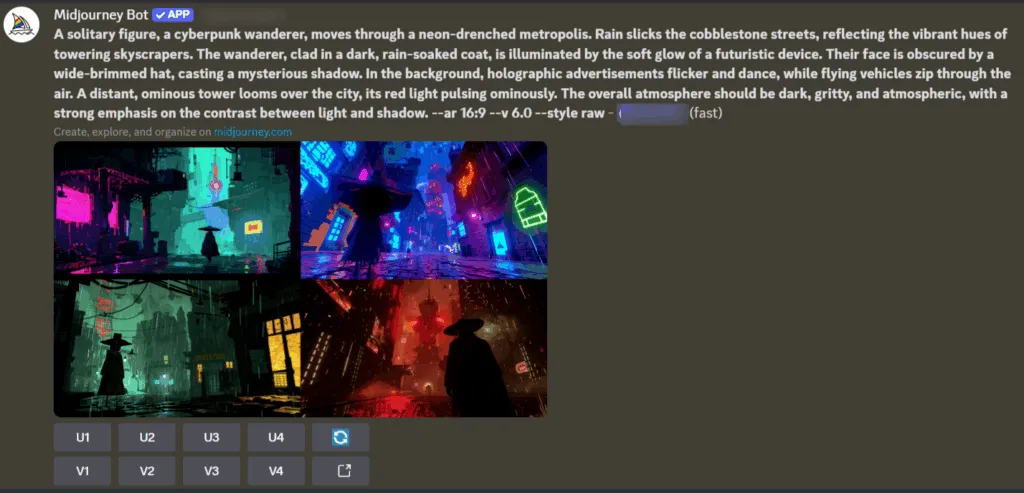
Your initial prompt is used by the model to generate four different outputs at the same time. This makes it much easier to refine the results, building upon the best output for your purpose.
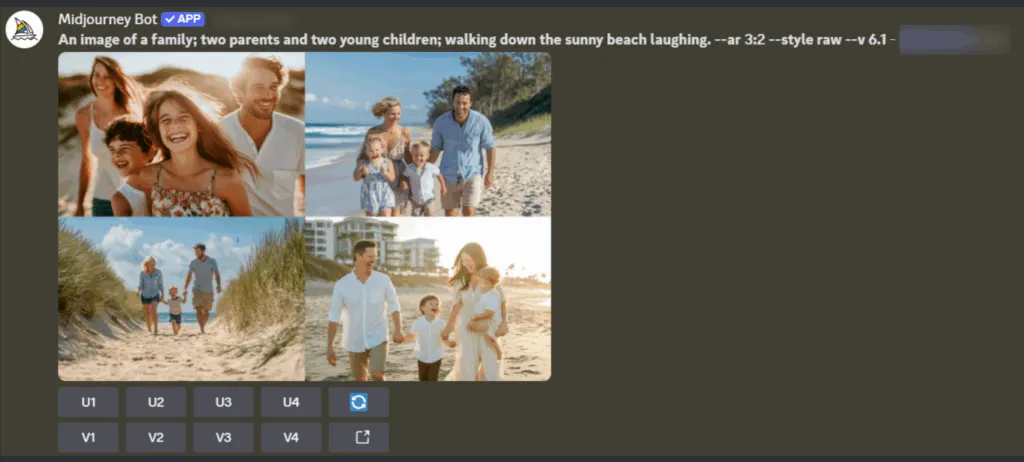
If you’re using Midjourney on Discord, you can select an image from that initial output by clicking on the U1 to U4 buttons. Alternatively, you can create variations of a chosen image by selecting the V1 through V4.
End result:
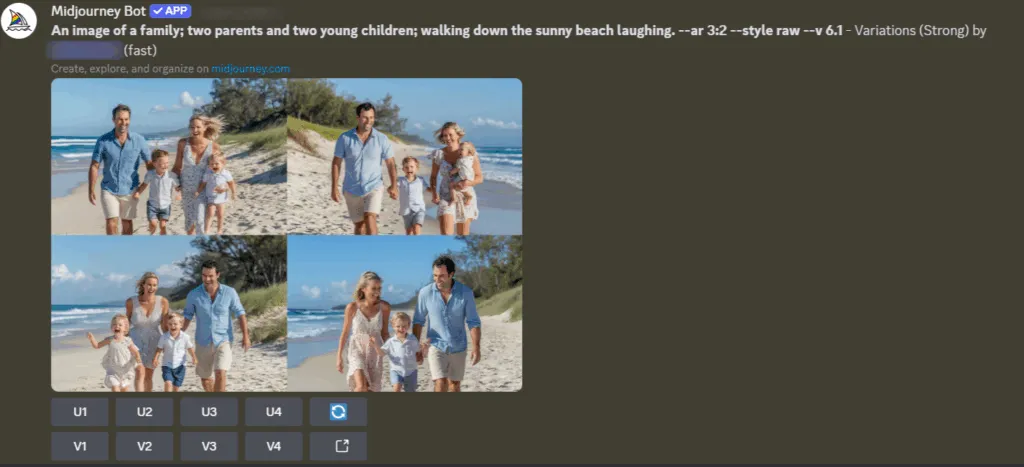
Changing the original prompt to produce more accurate or slightly different results is also possible.
Visual Prompts
Midjourney is all about flexibility. That’s why you have the option to use visual prompts instead of or next to text-based ones. This feature is particularly useful for creating detailed images based on something that exists in a physical world, like a piece of equipment or a product, or when you’re dealing with a more challenging prompt.
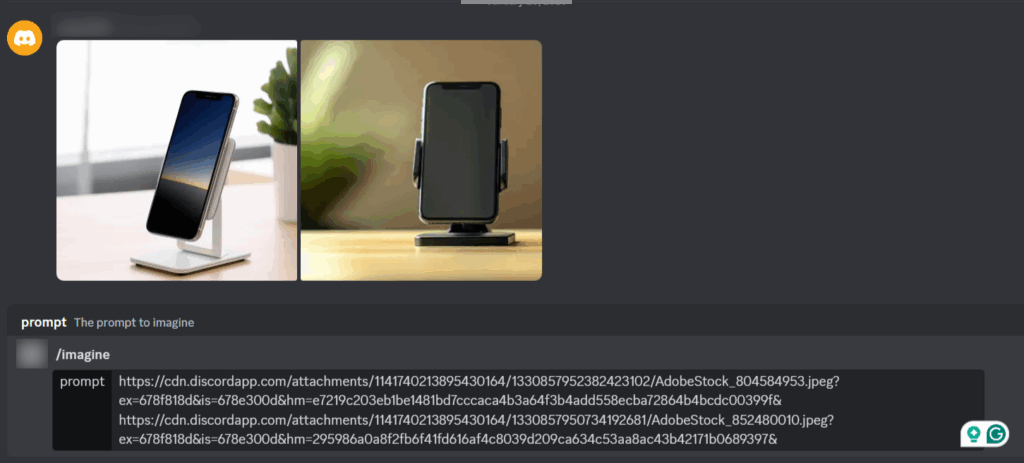
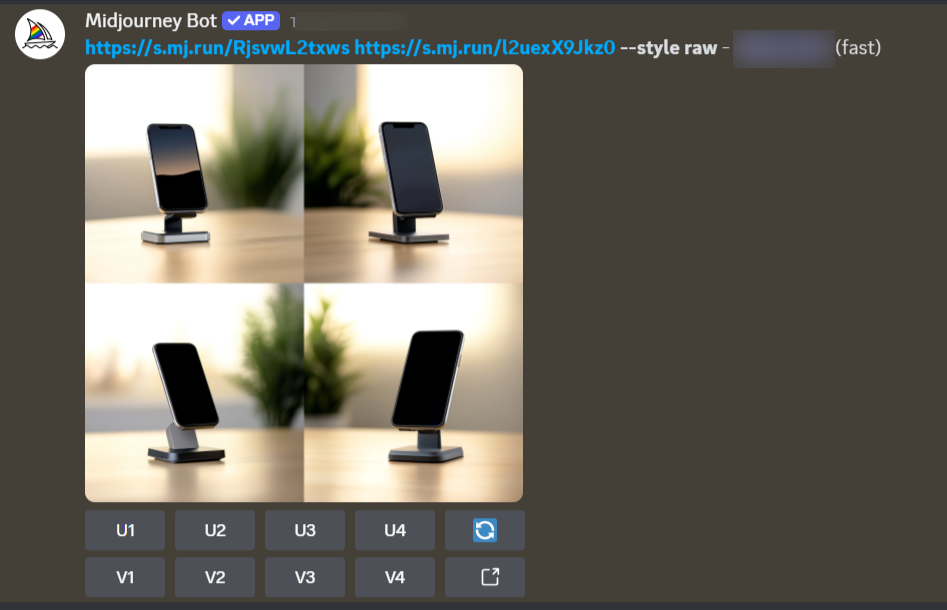
You can still use text in your visual prompts to guide the AI further, like specifying a desired style or mood.
Diverse Capabilities
The ease with which I can rework the prompt and remix the outputs makes Midjourney one of the most valuable tools in my arsenal. On top of that, when armed with a foolproof prompt, I can create virtually anything I need.
This AI tool can generate images that look like photographs or highly abstract and conceptual art. From cyberpunk and fantasy to hyperrealistic or whimsical, Midjourney can handle a wide range of aesthetic styles, making it one of the most versatile image-generating AI models we have at our disposal.
Potential Hurdles
While I like Midjourney and use it often in my work, there are definitely some aspects of the tool that can be considered cons.
- No free trial: Midjourney no longer offers a free trial, so you have to commit to a paid plan to try it out.
- Can be difficult to use: While the basic /imagine command is simple, getting the best results requires mastering prompt engineering, which can have a learning curve.
DALLE·3
OpenAI came out in 2023 with their version of the image generation tool. DALLE·3 is integrated into Bing Chat, Microsoft Copilot, and, of course, ChatGPT. What is there to like (and be aware of) when it comes to DALLE·3?
Ease of Use
DALLE·3 is definitely a less intimidating tool with a smaller learning curve than Midjourney. To generate an output, you only need a text prompt.
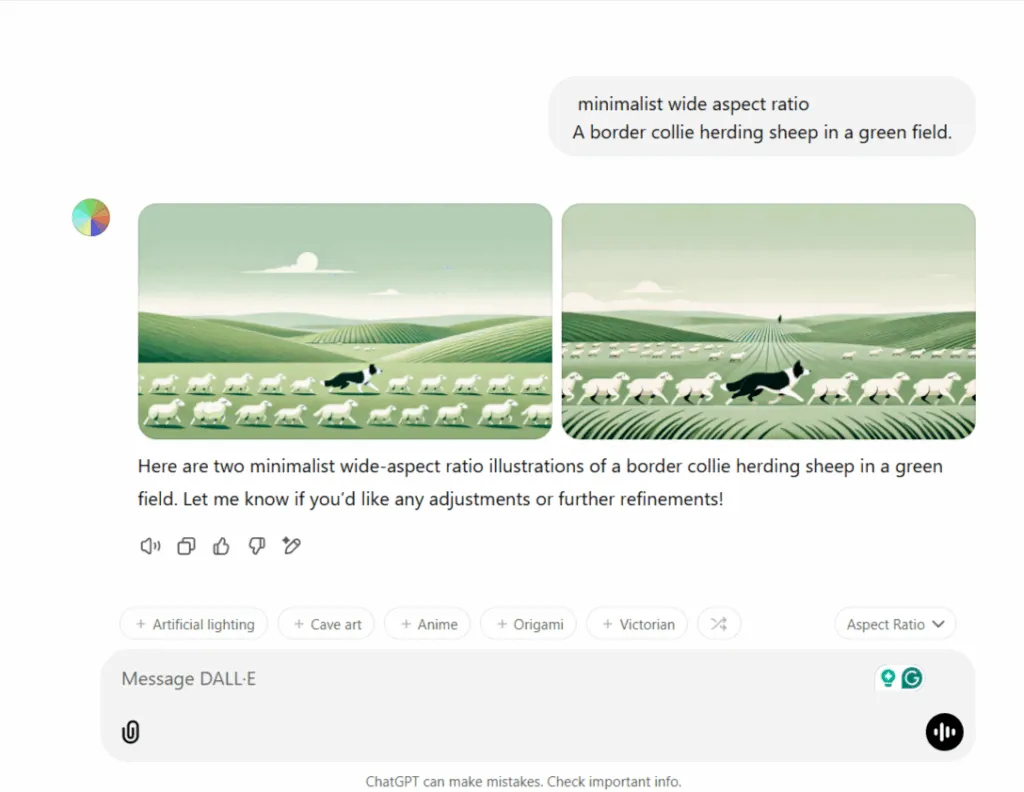
Like many AI models, DALLE·3 is capable of producing quality images if given a more detailed prompt.
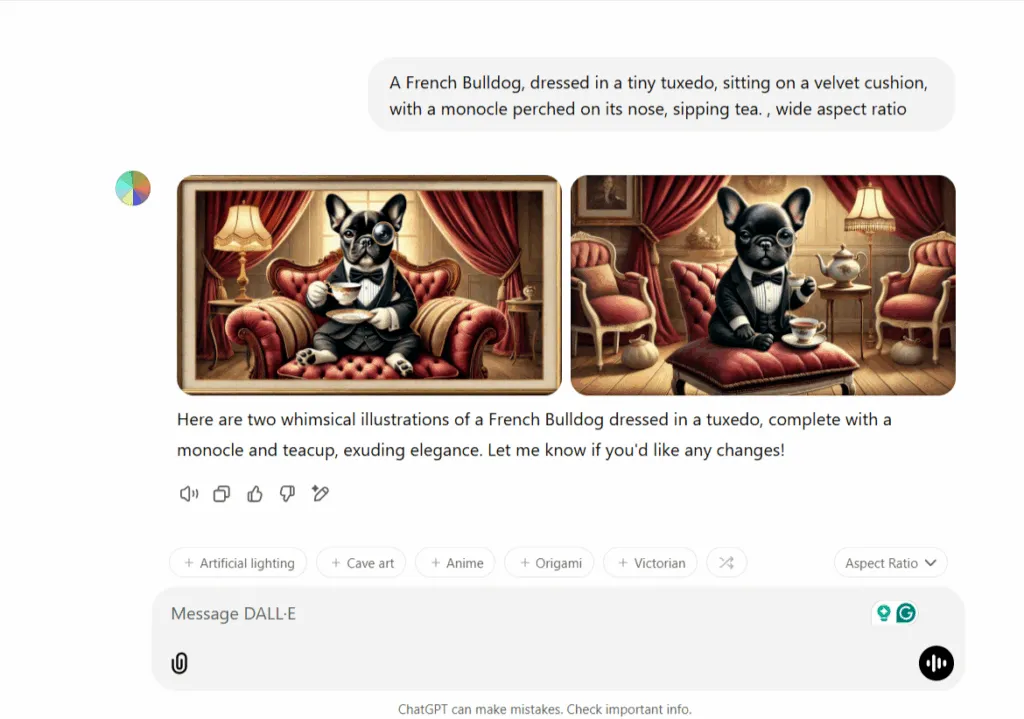
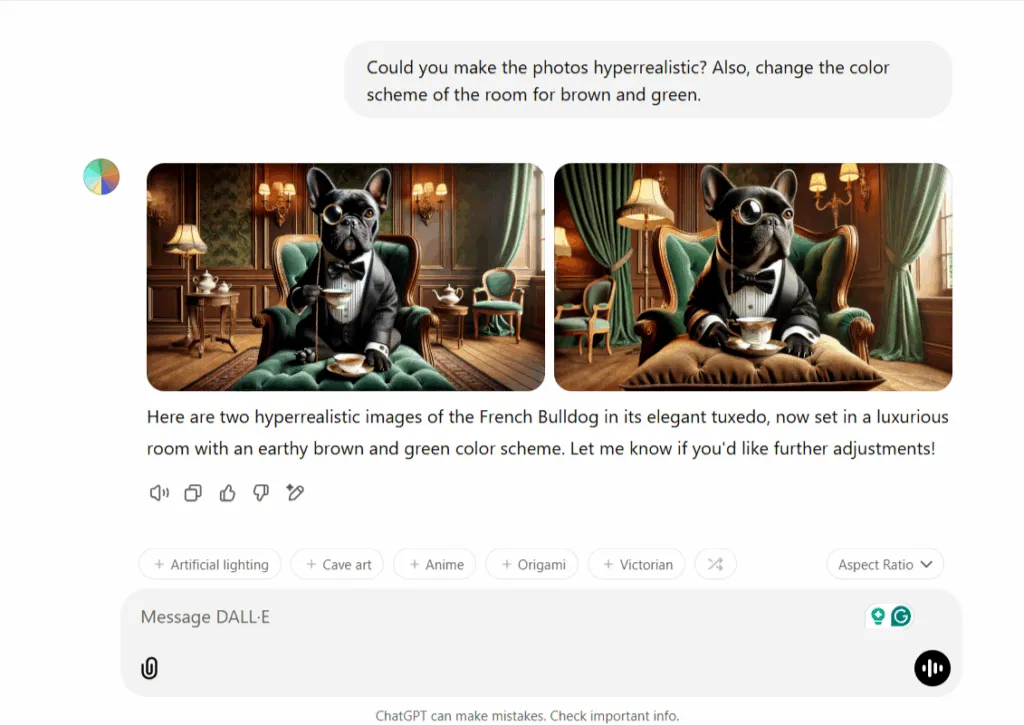
You can keep reworking the output to achieve the desired results by offering more instructions. The working principle stays the same as with text-based outputs.
Realism in Human Anatomy
One thing to keep in mind is that DALLE·3 tends to struggle with elements like human faces and other body parts.



It might take some trial and error to produce high-quality images without those errors. If you’re looking for realism in human anatomy, Midjourney remains the better choice.
Potential Hurdles
- Limited Customisation: Compared to other AI image generators like Midjourney, DALL·E 3 offers fewer options for customising image parameters such as aspect ratios, styles, or levels of realism.
- Accessibility and Cost: Currently, DALL·E 3 is accessible through ChatGPT Plus and costs $20/month.
- Occasional Inaccuracies: When working with this tool, you have to account for occasional errors, particularly around human anatomy.
Flux.1
If you’re looking for accuracy, speed, and ease of use, then you should try Flux.1.
Just like DALL-E 3, Flux.1 takes your text prompts and transforms them into images. However, unlike OpenAI’s model, this tool brings on board some useful customisation features, making it a valuable alternative to DALL-E 3 or Midjourney.
Fast and Efficient
Flux.1 offers a great mix of everything I like about Midjourney and DALL-E 3. It’s easy to use, with clear customisation options, while still producing high-quality, photo-realistic results.
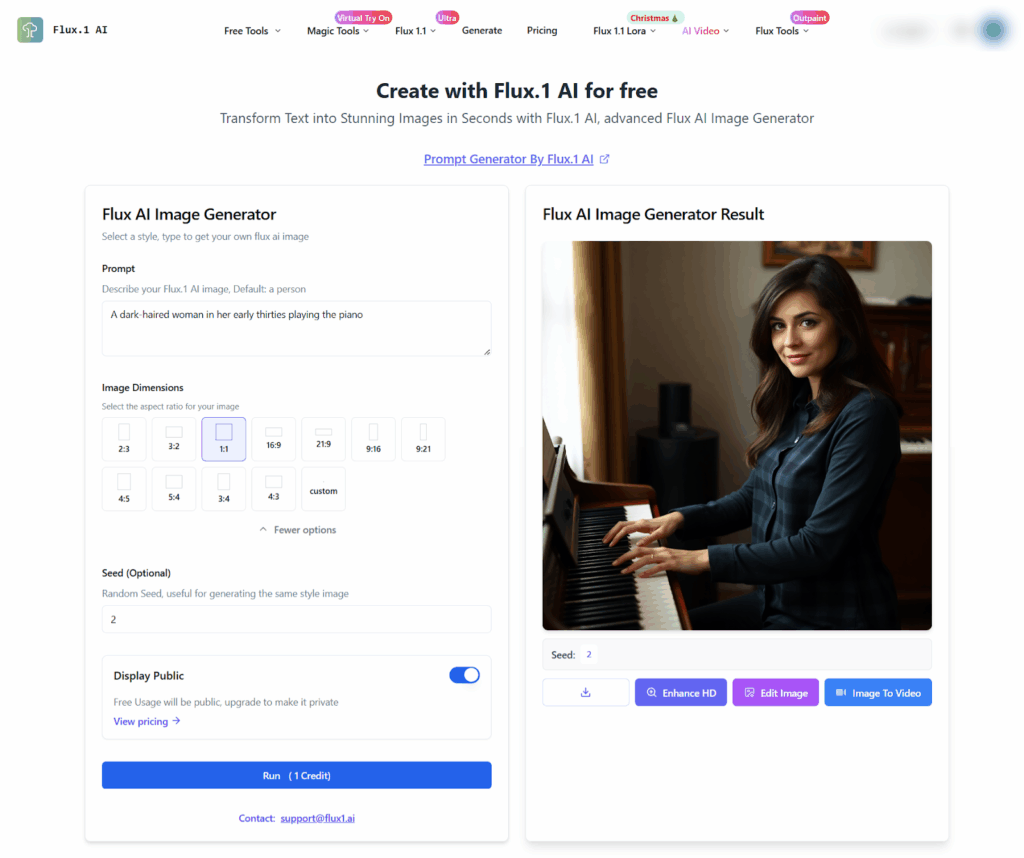
To generate an image, you need a prompt. Then, you can select the image dimensions and Seed value (this is optional) to recreate the image you once made or create interesting variations.
In the free version of the tool, all your images become publicly available, but you can upgrade to a paid version to lock them for private use only.
One thing worth mentioning is the free version of Flux.1 offers only 10 credits per user, which means you can go through them pretty quickly.
Editing Capabilities
Flux.1 allows you to edit your images. You can modify the image by reworking your prompt.
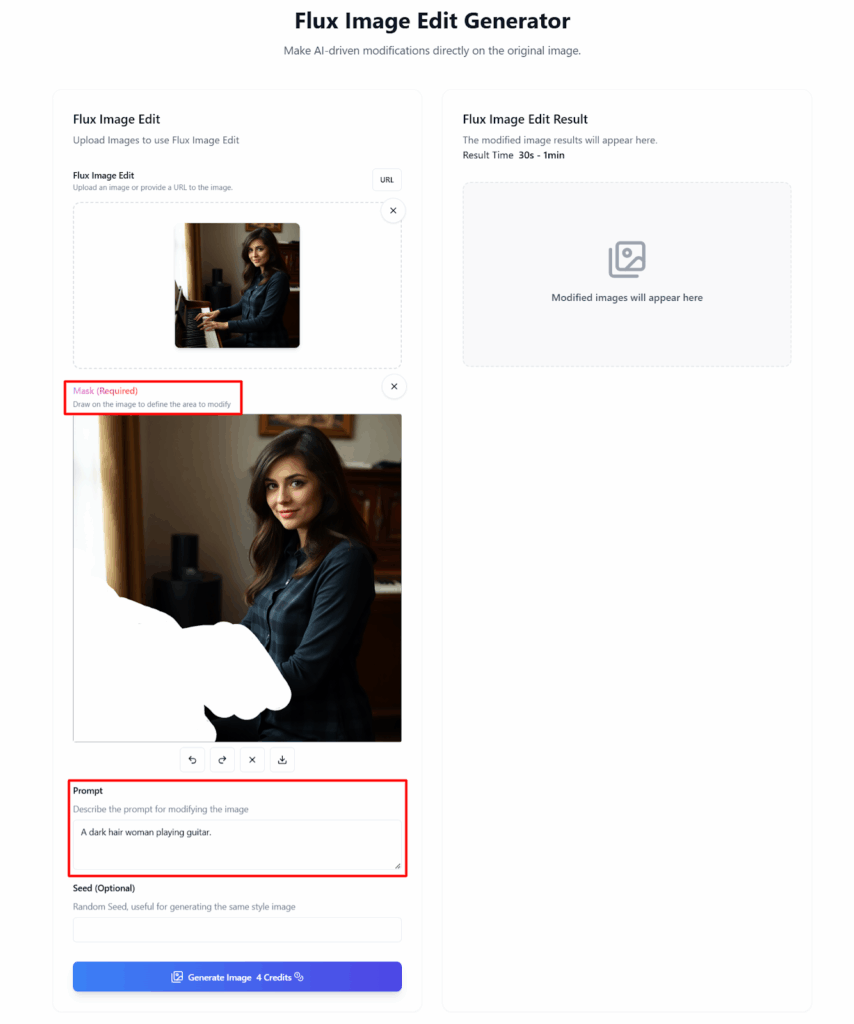

As you can see, after two tries, there’s definitely room for improvement. You can keep modifying the prompt until you’re happy with the results. However, each edit takes 4 credits from your account, so for free plan users editing function is not very efficient.
Suite of Tools
Besides the free version of Flux.1, you can also explore their more advanced offerings, like Flux.1.1, Flux Pro and Flux 1.1 Ultra. These models are more expensive, but their capabilities to create very realistic and detailed images are equally impressive.
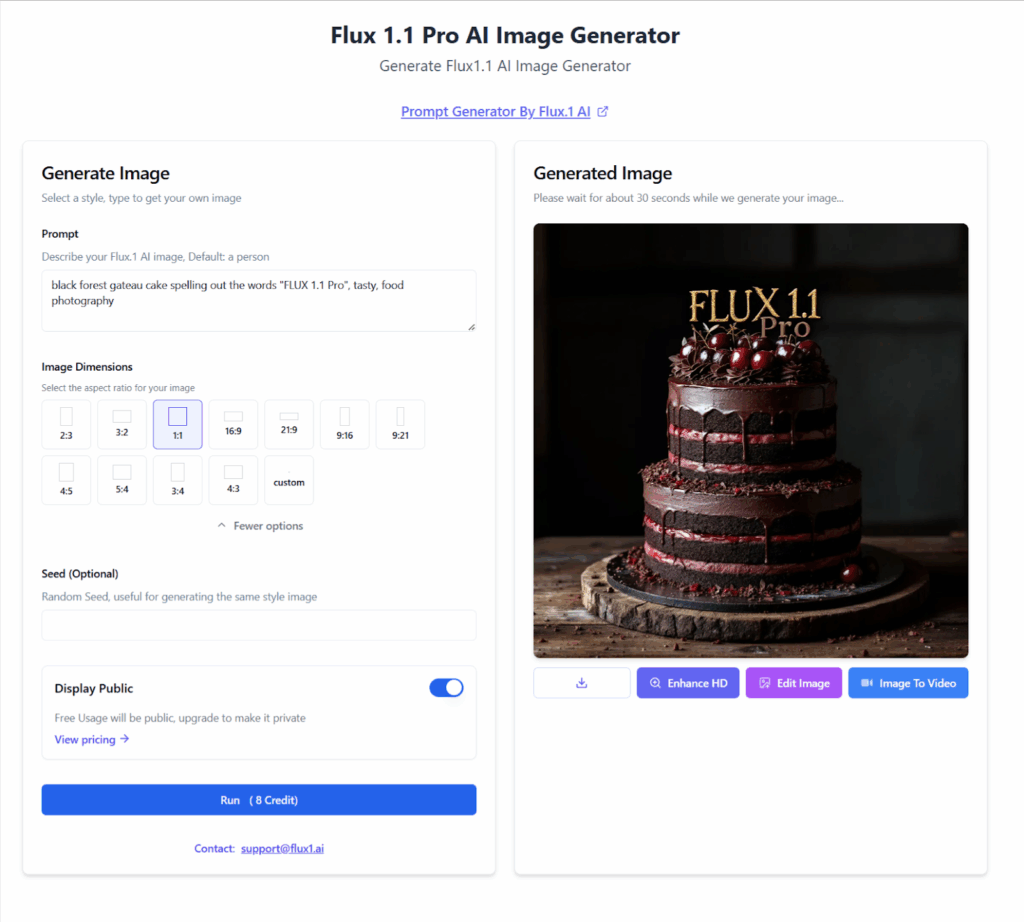
The tool comes with a range of free features as well, such as Prompt Generator, Image to Prompt, or Remove Background. All of this goes to show that Flux.1 is a well rounded generative AI that can satisfy the requirements of small scale projects as well as professionals in the industry.
Potential Hurdles
- Cost: The most cost effective subscription is around $15 per month and gives you 400 credits to use. The free version is more of a free trial and won’t be sufficient for most projects.
- Limited Styles: Flux.1 tends to excel at realism. It can struggle with illustrations and abstract artistic styles.
Adobe Firefly
Adobe Stock is another great resource for finding images, both AI and traditional. Thanks to the integration of Adobe Firefly – Adobe’s family of generative AI models – now it’s also possible to manipulate the images you find on the platform.
How does this function work?
Generating Variations
Select the image from Adobe Stock you want to change and choose the “Generate variations” option at the bottom.
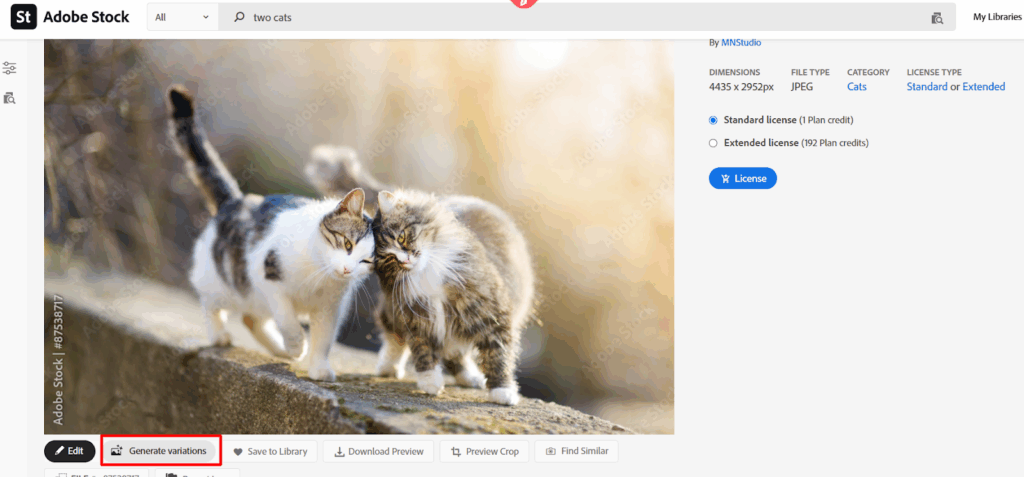
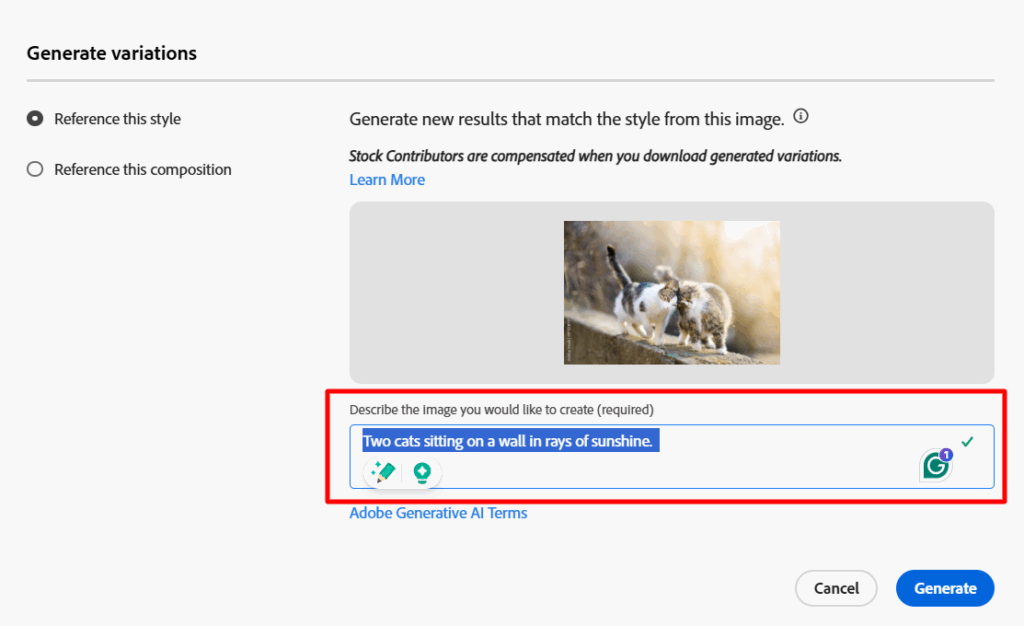
The results are great, and similar to Midjourney, you get four different variations from a single prompt so there’s a higher likelihood of generating an adequate image at the first try.
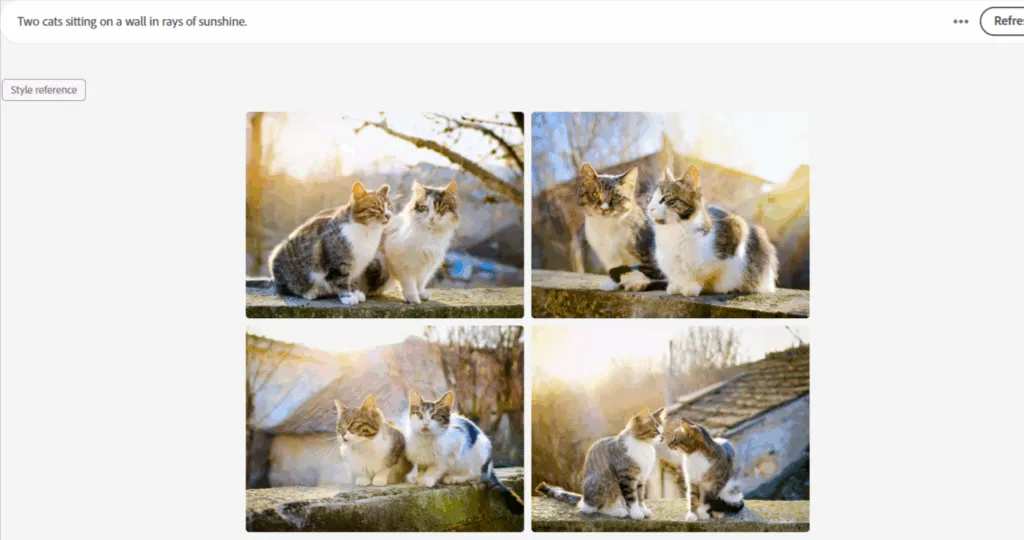
To have access to this tool you need the Adobe Stock subscription. The good news is that the tool deducts one credit from your account after downloading an image, so you don’t pay for the image generation process, but rather for the end product, regardless how many variations you have created to achieve it.
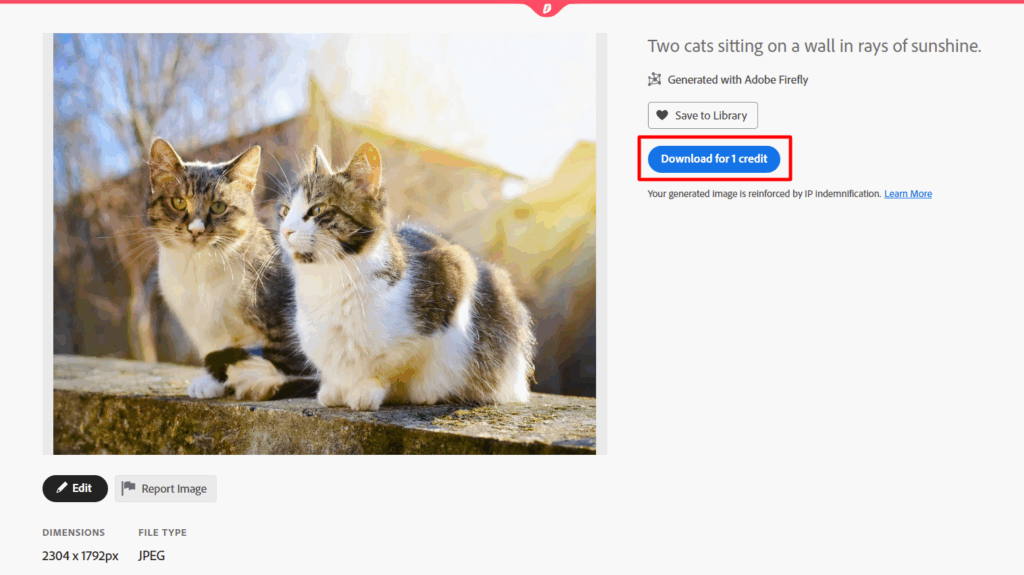
Generating new images from a text prompt looks very similar to the process I outlined above, but it might take more tries to create highly realistic images when you’re starting from scratch instead of building upon an already existing image.
Potential Hurdles
- Cost: While Firefly offers a free trial, full access requires a subscription.
Ideogram
If your demand for AI-generated images is not very substantial, and you’re looking for a tool that will be easy to run and free, I would suggest Ideogram.
Ideogram offers a solid free tier with 10 credits per week (5 to even 40 images), making it accessible to a wider audience. However, this also means that most of its advanced capabilities are locked in the paid plans. With a beginner-friendly interface and photorealistic outputs, this AI image generator is great for newbies.
Easy Image Generation
To start the process, all you need is a prompt. You can customise it by selecting the desired orientation, model (currently the tool offers two), and even the colour palette. Once you’re ready, you click “Generate.”
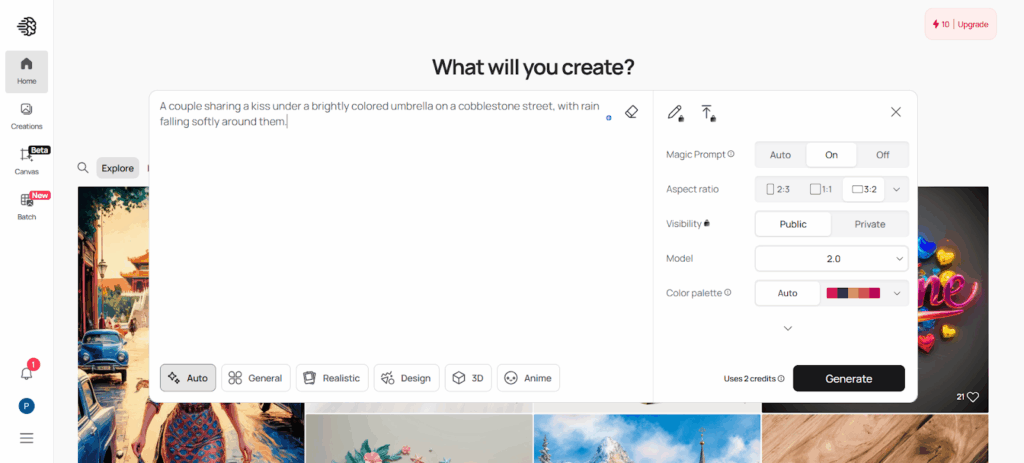
The image generation process takes a while (this trial took about three minutes), but the results are sharp and high-quality.
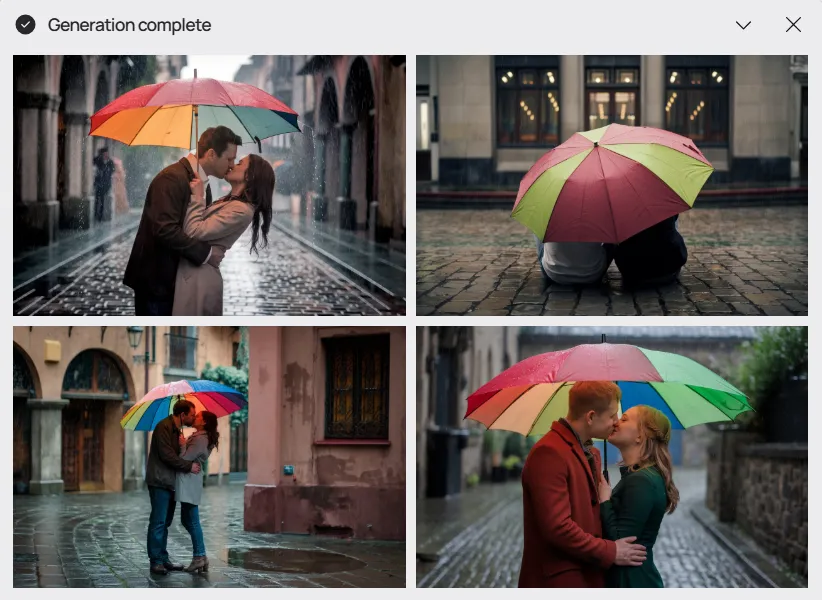
Ideogram offers basic editing tools as well, allowing users to change the prompt and other parameters.
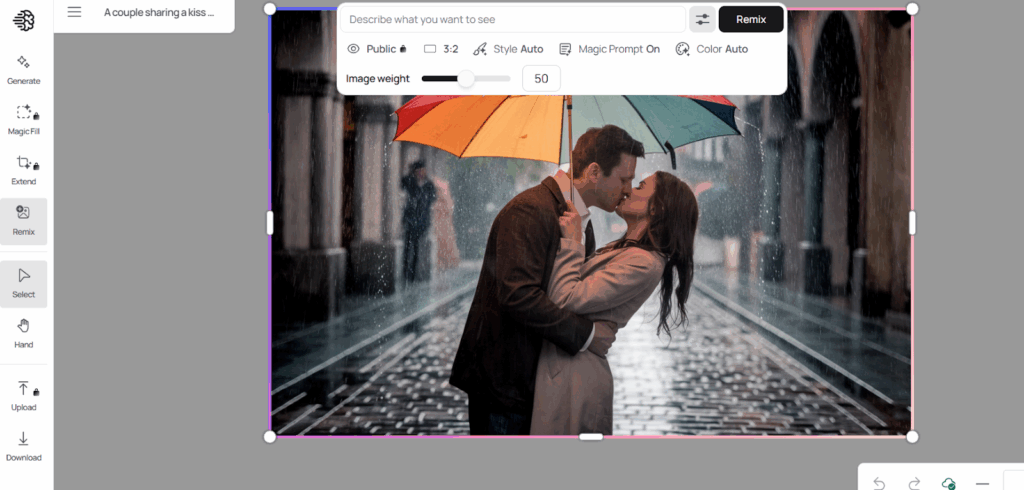
Some more interesting features, such as Magic Fill & Extend (for image extending and modifications), or Background Removal, are behind the paywall, however, Ideogram is far from the most expensive AI image generator tools out there.
Potential Hurdles
- Limited Editing Capabilities: Ideogram primarily focuses on generating images from scratch. It doesn’t offer extensive built-in tools for editing or refining the generated images.
AI Image Generators – Comparison
| Feature | Midjourney | DALL·E 3 | Flux.1 | Adobe Firefly | Ideogram |
| Price | $10 – $120/month | $20/month (included with ChatGPT Plus) | Paid plans available from $15/month | Through Adobe Stock $29.99/month / Adobe Firefly $4.99/month | Free (limited) / Paid plans available from $7/month |
| Free Trial | No | Yes, within ChatGPT Plus trial | Yes (10 credits) | Yes | Yes (10 credits/week) |
| Advantages | – Excellent at hyperrealistic images, especially human forms – Flexible prompt options (text and visual)- Diverse artistic styles – Strong community on Discord | – Easy to use with natural language prompts- Integrated with ChatGPT and other Microsoft products | – Fast and efficient image generation- Customization options for image parameters – Additional tools (prompt generator, background removal) | – High-quality image variations- Seamless integration with Adobe Stock – Generates variations from existing images | -Beginner-friendly interface – Solid free tier with weekly credits – Good for photorealistic outputs |
| Cons | – Can be difficult to master- No free trial | – Struggles with realistic human anatomy- Limited customisation options | – Limited styles | – Can be expensive if accessed through Adobe Stock | – Limited editing capabilities |
AI-Powered How-Tos – Effortless Video Guides in Minutes
Guidde
Guidde is an AI-powered platform for creating how-to guides and training videos. The tool doesn’t require previous experience with video content creation, and thanks to its automation, it makes the whole process quick and pain-free.
Creating Guides in a Few Easy Steps
After creating your account, the tool will ask you to add Guidde’s Chrome extension. Once everything is set and ready, the creation process can begin.
Go to the tab you want to record and perform the task. The tool will automatically generate a step-by-step video guide. After the recording stage is concluded, you will end up with a video that is now ready for editing.
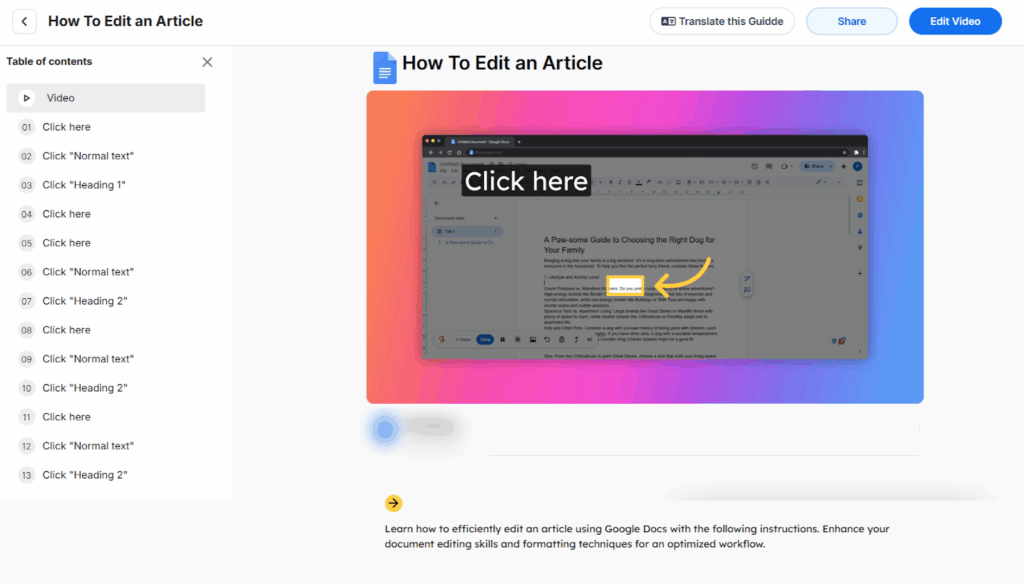
You can easily add or remove sections:
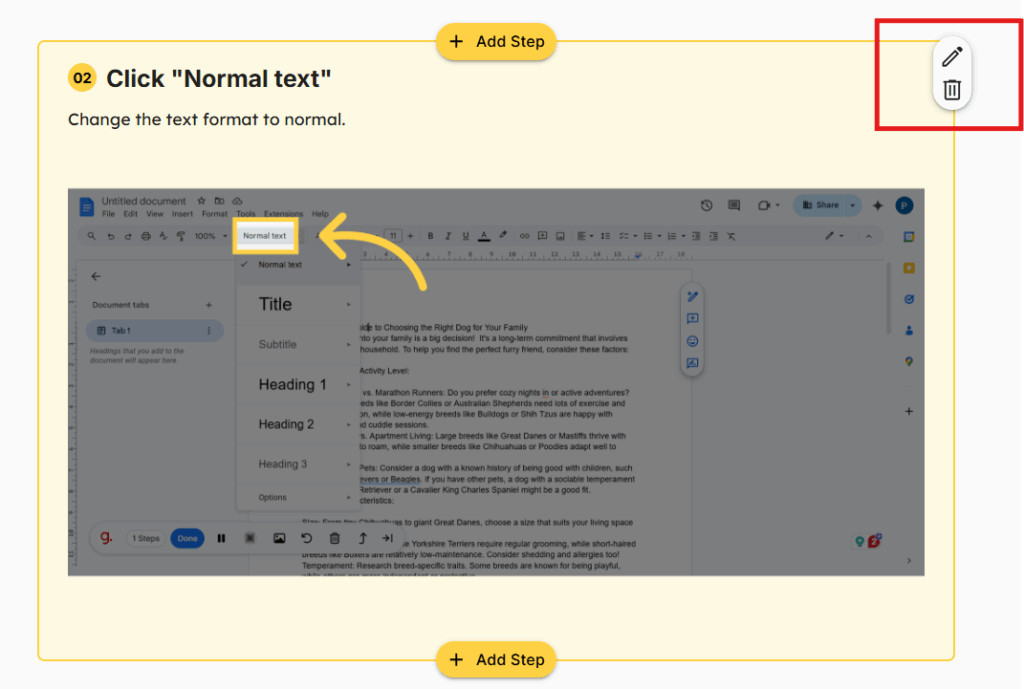
Or edit them by changing the step title, text, and text formatting.
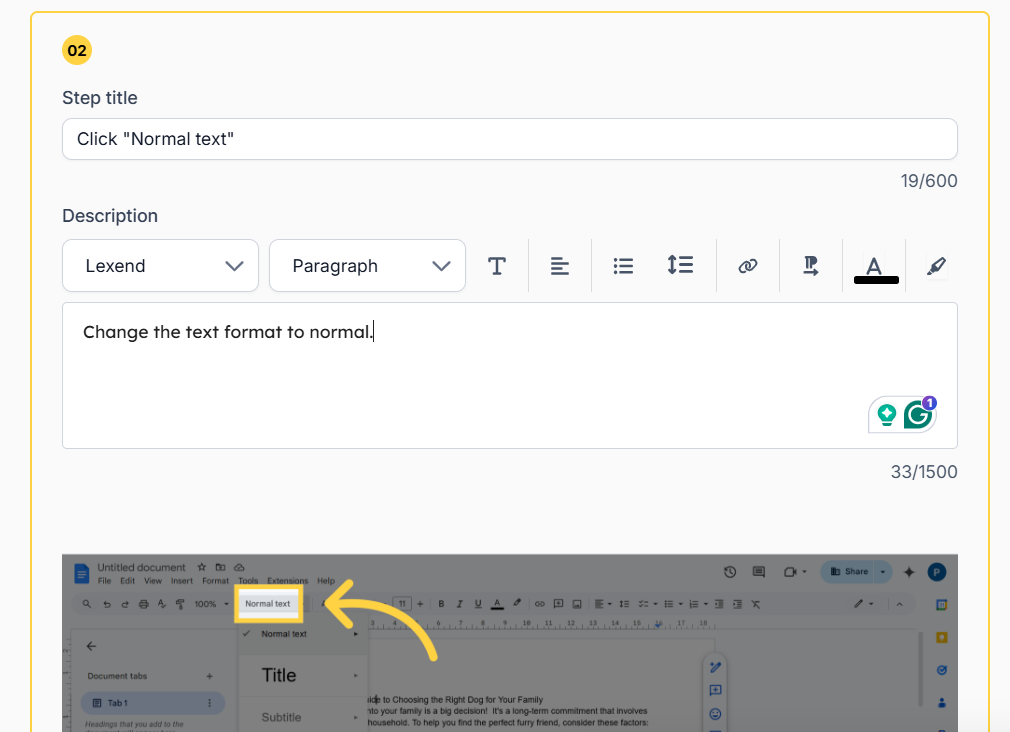
However, I found that the Editing view is where you can really elevate your video guide. And that’s where we’re going now.
Effortless Editing
When you click “Edit the video,” you’ll see this interface:
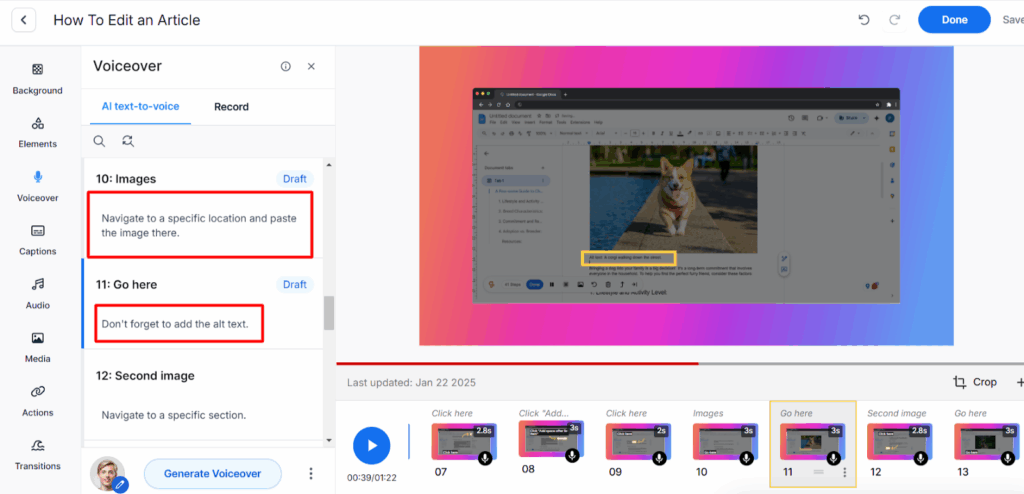
Here, you can modify the text and visual elements used in your guide, customising each Step.
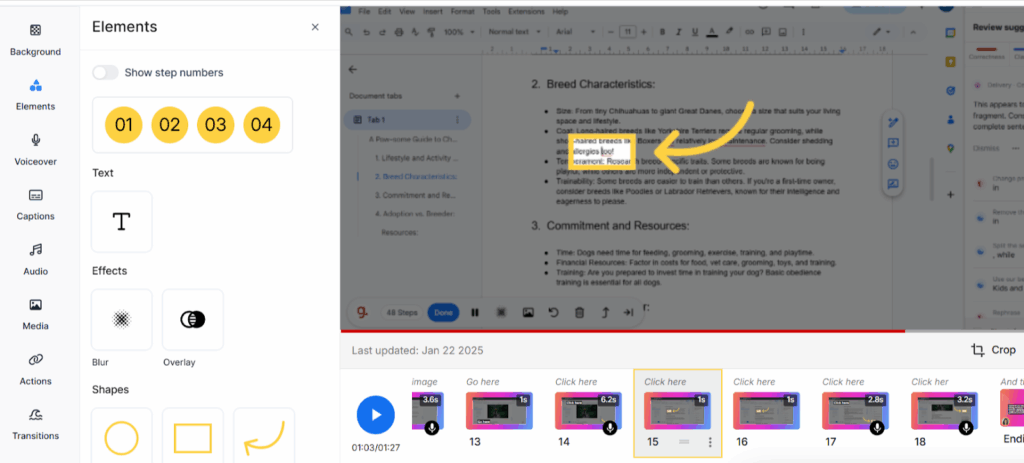
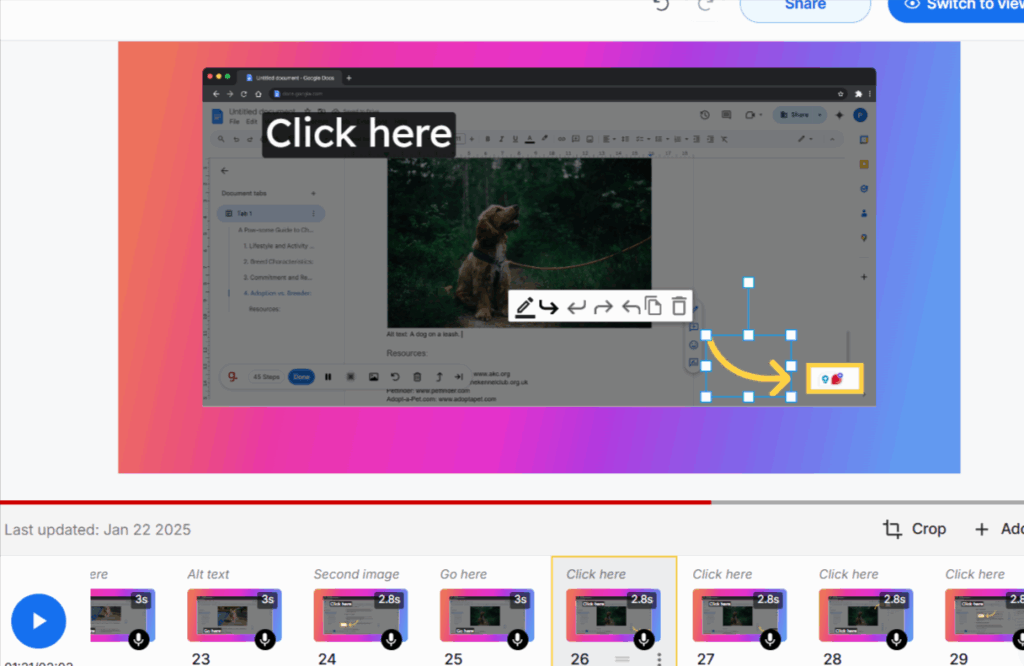
Furthermore, you can select AI Speaker that fits your project best from a rather long list of options. They offer voiceovers in over 40 languages, which is a big advantage.
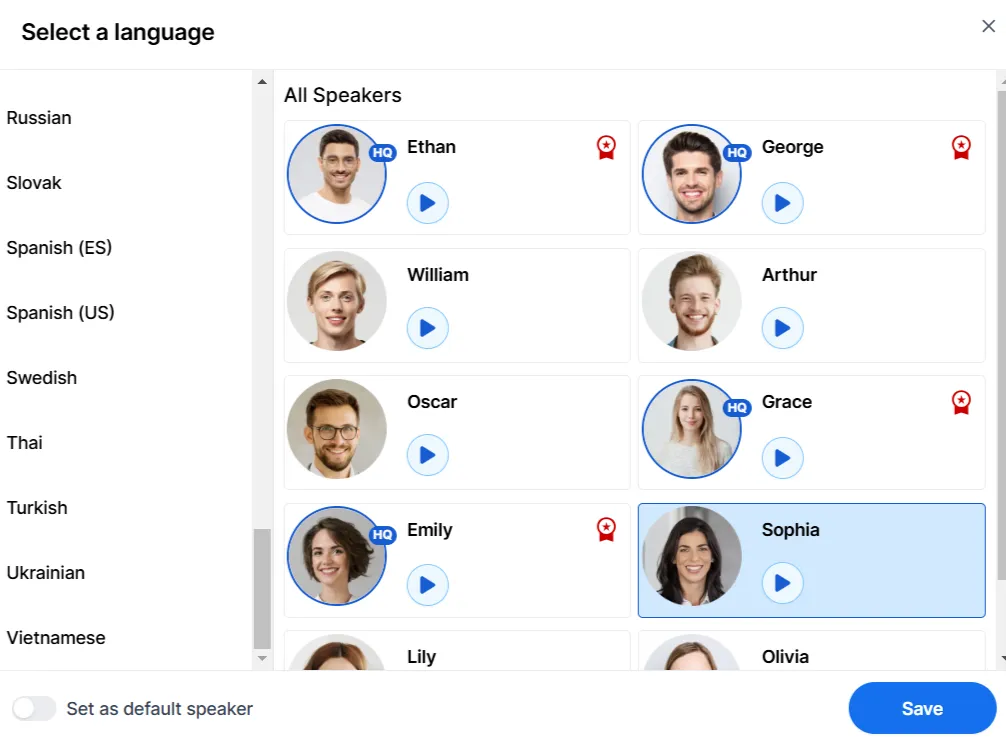
Guidde works great for simple how-tos videos creation. It’s very easy to use – the whole process can take less than an hour. The tool facilitates collaboration too. You can invite the other members of your team to work on the project together.
Here’s the video I created using the tool:
Potential Hurdles
- No Downloads During Free Trial: You can test the tool for 14 days, however the option to download your videos is locked until you purchase the subscription.
- Basic Editing Capabilities: I would recommend Guidde for users who look for some basic tools for video content creation. It may not satisfy the requirements of more complex projects.
Data Visualisation Made Easy
Canva
For quick and effortless graph creation, I usually go with old and tested Canva. Canva’s drag-and-drop interface makes it incredibly user-friendly, even for those with no design experience. Versatile and equipped with some more advanced features, the tool gives you a plethora of customisation options.
Designing Graphs in Canva
You start with a basic graph template that you can upload your data onto. Here’s how simple that process is:
And now you can customise your design to your liking. The best part is that Canva is free to use. The free plan has a lot of cool features, so you can do a lot more with this tool besides creating graphs, namely blog banners, videos and infographics.
Your Personal Editing Dream Team – Custom GPTs for Editing
Content creation doesn’t end once you conclude the last sentence of your article or copy. Editing is a crucial (although sometimes disliked) part of the process. As an experienced copywriter, I know that self-editing leaves too much room for errors… Well, at least when you’re doing it by hand.
What Are Custom GPTs and Why Should You Be Using Them?
Streamline your editing process with a custom GPT – a virtual expert you can train on your data to perform tasks as mundane as catching spelling errors and as complex as improving the style, adapting for different formats, and enhancing SEO best practices.
Custom GPTs are personalised versions of ChatGPT that you can create to perform specific tasks or provide tailored experiences. And if you’re not using this tool yet, here’s what you are missing out on.
Editing with Custom GPT
To initiate the process, you can take two routes – selecting one of the available custom GPTs for editing (easier but less personalised) or, if the scope of your project requires special adjustments, creating your own chat.
Let’s start with the first scenario.
editGPT
Go to GPTs marketplace and search for “editGPT.”
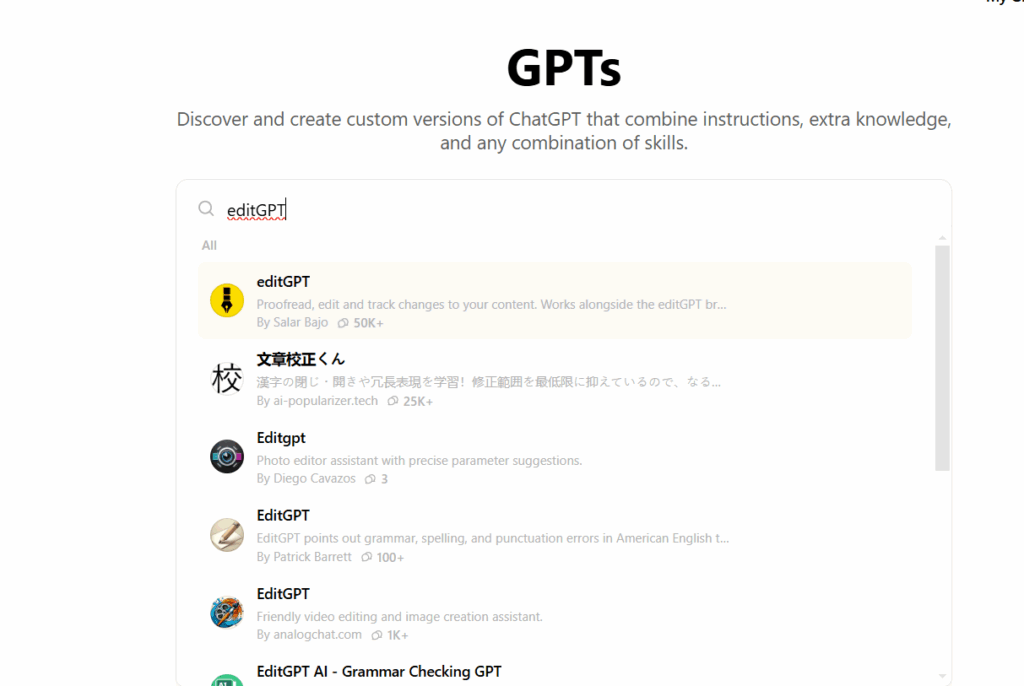
Choose the first chat and click “Start Chat.”
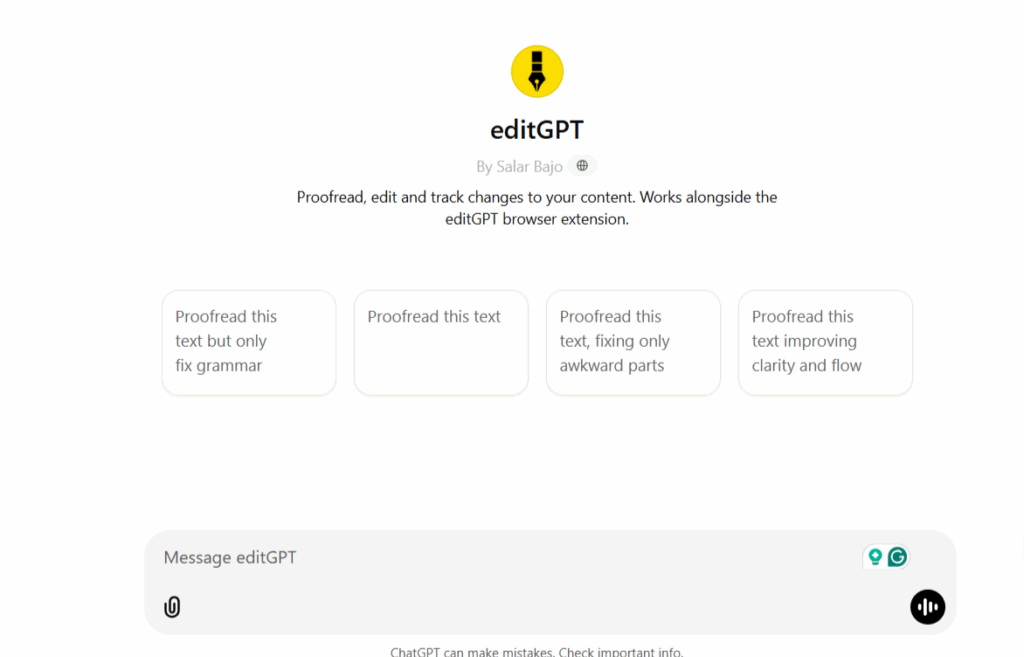
Now, you can select the angle AI should take while editing – from simple proofreading to fixing flow and clarity. Choose the action Chat should take and paste your text.
The chat will answer with something like this:
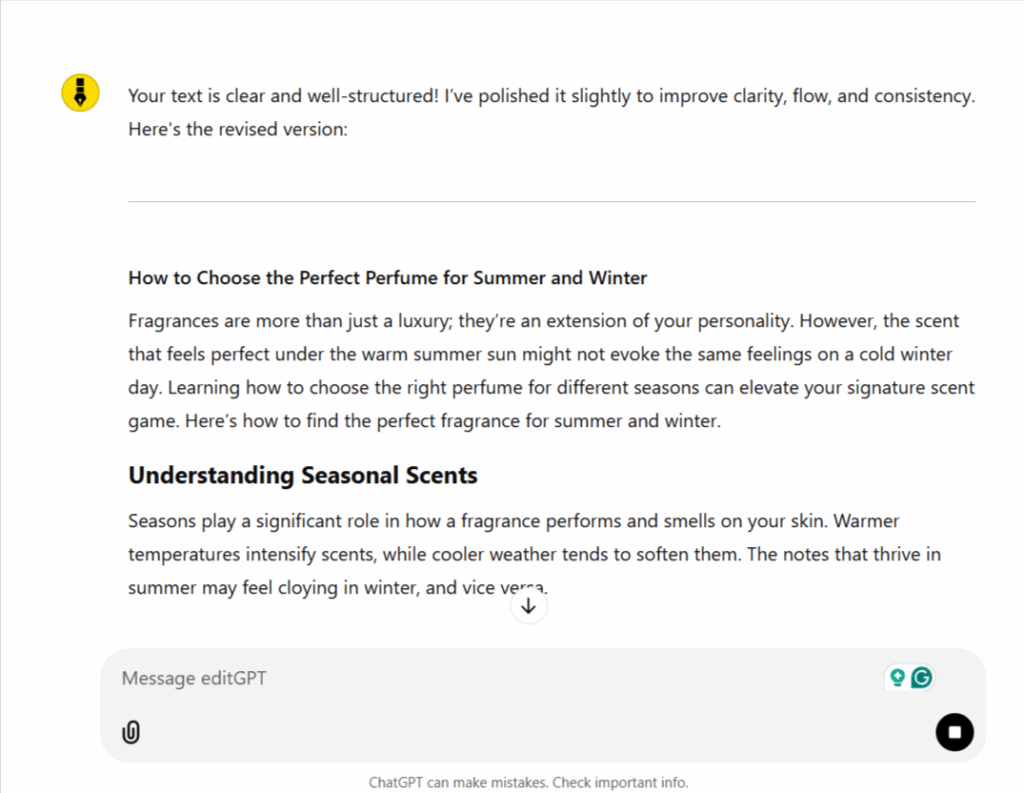
Compare the changes and keep reworking the text if needed.
Voice/Style/Tone AI Prompt Snippet Generator
Another interesting chat to try is Voice/Style/Tone AI Prompt Snippet Generator. While this is not technically an editing tool, it can help you refine your AI prompts to generate more accurate responses, shortening the time needed for editing and refinements.
Simply input a sample of your writing into the chat.
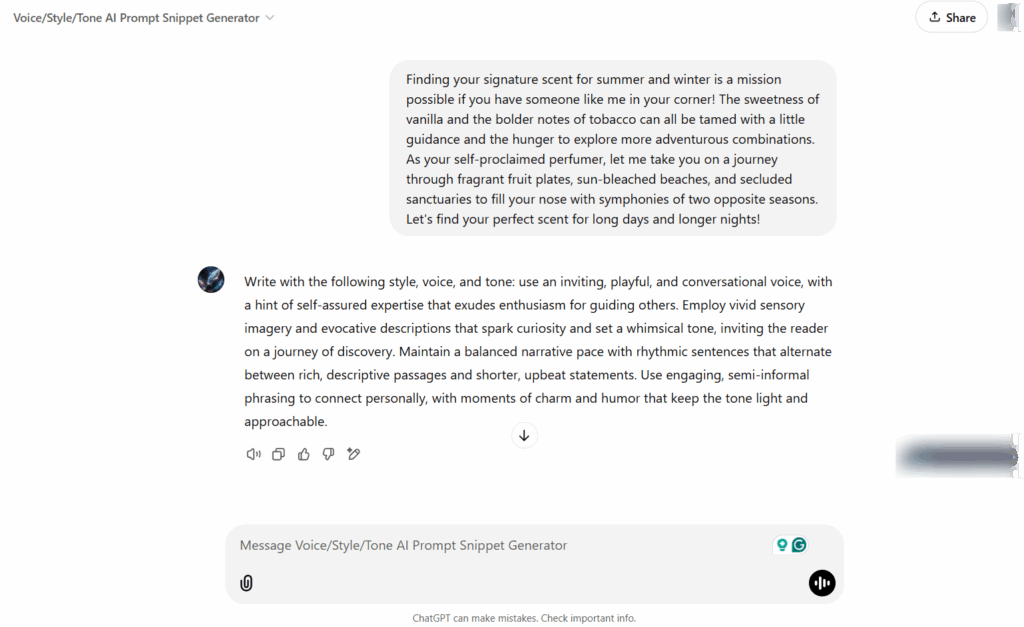
And now you have a great base for crafting AI prompts that help you maintain the same tone of voice across the whole piece.
Creating Custom GPT
Building a custom GPT can be a more effective approach when you’re working on a lot of repetitive tasks/types of content. With this strategy, you don’t have to rely on outside parameters when editing – you set them up yourself and return to them whenever you need to automate the task.
A custom GPT can be trained on your specific style guides, preferred dictionaries, and your own writing samples. This means it understands your unique preferences and provides feedback that’s truly relevant to your work.
Here’s how you can start building your own chat:
It’s easier to work in the Configure module, where you can include clear instructions for your chat. Those should outline the whole process your chat will need to initiate, from collecting writing samples and defining the writing style to adhering to custom rules and providing relevant feedback.
Once everything is set, you should end up with something like this:
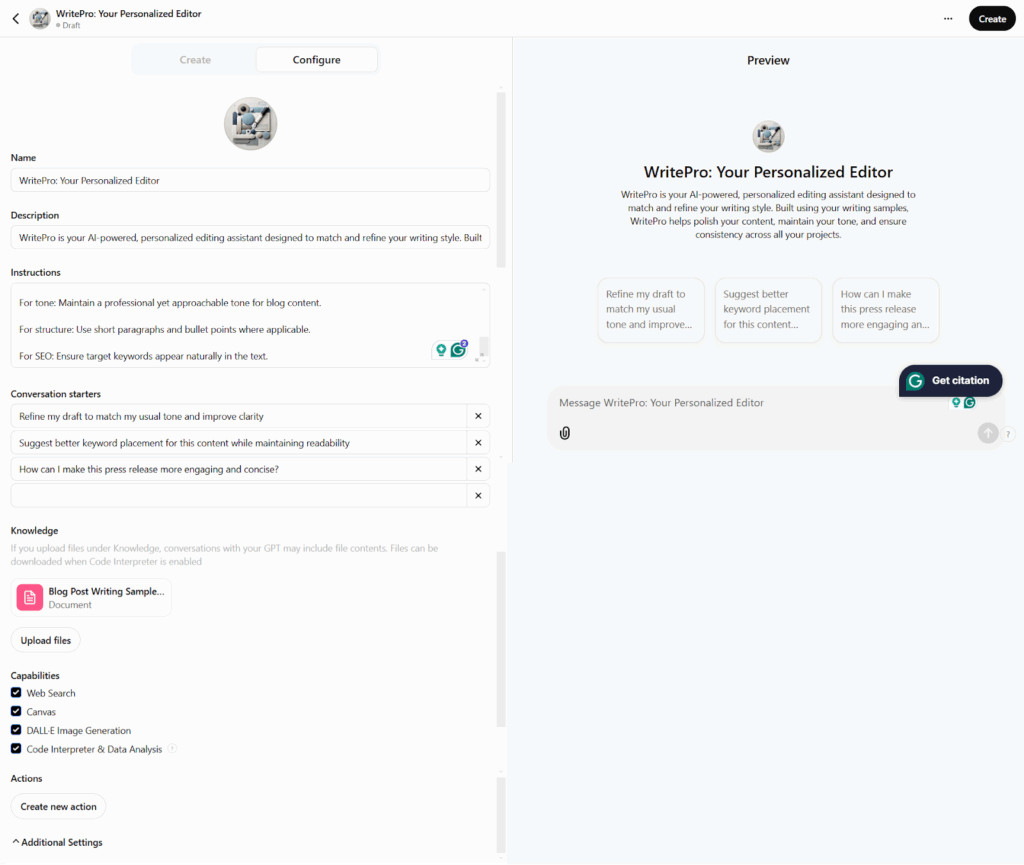
Don’t forget about uploading relevant Knowledge files to the chat. In our case, this should include writing samples, so the chat knows what style of writing to refer to.
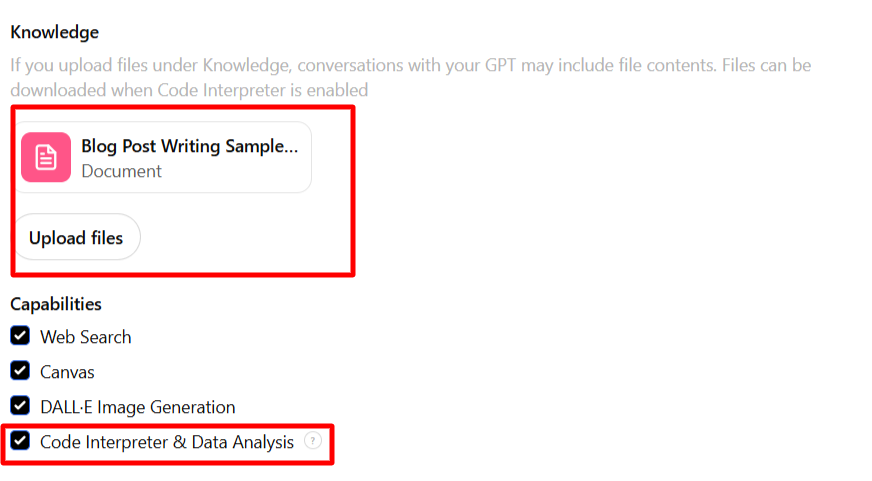
Click the ‘Code Interpreter & Data Analysis’ functionality so your custom chat is able to access the data.
Now, all that is left are tests and refinements to ensure the tool works as intended. You can create custom GPTs for private use, to share within your organisation or with public access. In that last scenario, remember to carefully choose files you include in the chat, as with proper coding knowledge, they can be accessed by outside parties.
All in all, custom GPTs are a solid strategy to improve your self-editing capabilities, going far beyond the basic spelling check.
Tools I Use
Here is a list of some of the tested tools I use in content creation every day:
- Alt Text Generator – Ahrefs Alt Text Generator
- Image Editing – I Love IMG
- Screen Recorder – Awesome Screen Recorder & Screenshot
- Thesaurus – Word Hippo
- Bibliography Formatting – MyBib
- Titles Capitalisation – Capitalize My Title
- AI Detector – Grammarly
Final Thoughts
The journey to creating effective content is not always easy. Sometimes, it feels like climbing a mountain – that’s when gear like comfortable boots and a windproof jacket comes in handy.
Consider AI your reliable climbing essentials. From easy image generation to AI-supported proofreading, you can reach the top quicker and enjoy the views, knowing your content reaches and engages the right people. Try these tools yourself and discover how you can elevate your content creation.